01
They write it up later
Most typed their notes after the visit, in the truck or at home, from memory. Details were gone by then.
“By the time I'm back in the truck, I've forgotten half of it.”
HVAC technician, 12 years in the trade
WorkAI featuresAI Walkthrough
AI Walkthrough is a feature I designed from scratch for Swivl's mobile app. A technician walks the job, talks, and takes photos. Swivl turns the talk into a clean summary, names the photos, and puts both into a draft that becomes the estimate.
StatusLive on iOS and Android since Nov 2025
The problem
Technicians typed site notes on a phone, so details got lost. 58% of estimates sent from Swivl had no description at all.
What I designed
A walkthrough where they talk and take photos instead. Swivl writes the summary, names the photos and builds the estimate draft.
The result
Live on iOS and Android. A site walk now ends as an estimate draft, with the summary and the photos already in it.
Technicians typed site notes on a phone, so details got lost. 58% of estimates sent from Swivl had no description at all.
A walkthrough where they talk and take photos instead. Swivl writes the summary, names the photos and builds the estimate draft.
Live on iOS and Android. A site walk now ends as an estimate draft, with the summary and the photos already in it.
Technicians typed site notes on a phone, so details got lost. 58% of estimates sent from Swivl had no description at all.
A walkthrough where they talk and take photos instead. Swivl writes the summary, names the photos and builds the estimate draft.
Live on iOS and Android. A site walk now ends as an estimate draft, with the summary and the photos already in it.
The problem
On a site walk, a technician sees everything: the broken part, the model number, what the customer wants. But writing it up meant typing on a phone, so most of it never reached the estimate. The photos sat in the camera roll, the notes somewhere else, and the customer got a price with no story behind it.
58%
of estimates sent from Swivl had no description at all. 77% had under 40 characters.5
7+ hours
a week that field technicians lose to admin work.1
68%
of US homeowners expect photo or video proof of finished work.2
The first number is Swivl's own data. The other two are industry studies, for context.
Before
PhotosTaken on the phone, kept apart
NotesTyped by hand on the phone
EstimateWhat the customer reads
Three places, and nothing linking them.
With AI Walkthrough
One walkthroughTalk while you take photos
One draftA clean summary and named photos
EstimateCreated from the draft
One walk, one draft, one estimate.
Before
Three places, and nothing linking them.
With AI Walkthrough
One walk, one draft, one estimate.
Writing up a job meant typing notes on a phone. It was slow, and mistakes slipped in. The photos lived in one place and the notes in another, so they often didn't match. And the customer wanted clear before-and-after proof of the work, in one place.
7+ hours
a week that field technicians lose to admin work, 18% of their working hours.
68%
of US homeowners expect photo or video proof of finished work.
Industry numbers, for context.
Research
Before designing anything, I talked with technicians at several Swivl customers and joined some of them on site visits. I asked them to walk me through their last estimate, from the site to the customer. Three things came up again and again.
01
Most typed their notes after the visit, in the truck or at home, from memory. Details were gone by then.
“By the time I'm back in the truck, I've forgotten half of it.”
HVAC technician, 12 years in the trade
02
Most took photos with the phone's camera, then had to find them and match them to the job later.
“I take twenty photos, and then I can't tell which one is which.”
Electrician, owner of a 4-person crew
03
Gloves, noise, ladders. Several already sent themselves voice notes instead of typing.
“I just send myself a voice note and deal with it at night.”
Plumber, 6 years in the trade
What it told usThe job wasn't to make typing faster. It was to capture the walk while it happens, in the technician's own words.
The idea
Our PRD bet that technicians would rather talk than type, and the interviews agreed. Studies on phones back it up. In a study by Stanford and the University of Washington, people entered English by voice at 153 words a minute, against 52 on the keyboard.3
Tools like CompanyCam and Zuper already let crews narrate while they take photos.4 Ours had one more job. It had to end as a Swivl estimate draft, so nothing had to be copied across.
What we designed around
From the PRD
How we got there
The PRD said what to build: walk, talk, take photos, get a draft. The design had to decide where it starts, how it shows it's listening, and who has the last word. For each one I built a first version, tested it with technicians on a clickable prototype, and changed what didn't work.
Went through the PRD with the product owner and agreed the goals and limits.
Talked with 8 technicians and joined 2 site visits.
Mapped the flow and built version 1 as a clickable prototype.
Tested it with 6 technicians and changed three things.
Final screens and edge cases. Handed off on 6 Oct 2025.
Went through the PRD with the product owner and agreed the goals and limits. Talked with technicians and joined site visits.
Mapped the flow and built version 1 as a clickable prototype. Tested it with technicians.
Changed three things after the tests. Final screens and edge cases. Handed off on 6 Oct 2025.
01 · Where does it start?
Why: it ends as an estimate, so it starts where estimates start.
02 · How do you know it's listening?
Why: loud sites were the biggest risk, and the limits shouldn't come as a surprise.
03 · Who has the last word?
Why: the customer reads it, so a person checks it first.
The design
01 · Where does it start?
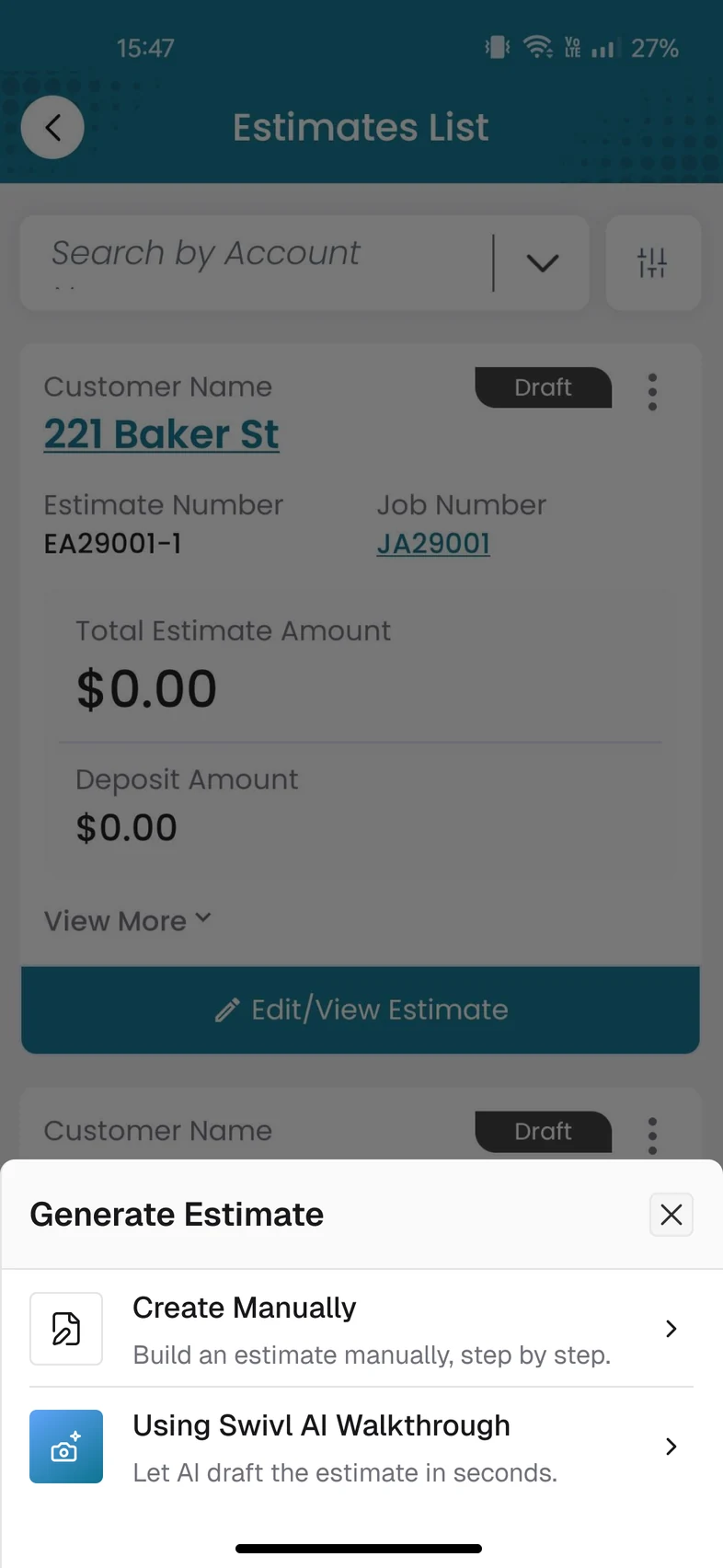
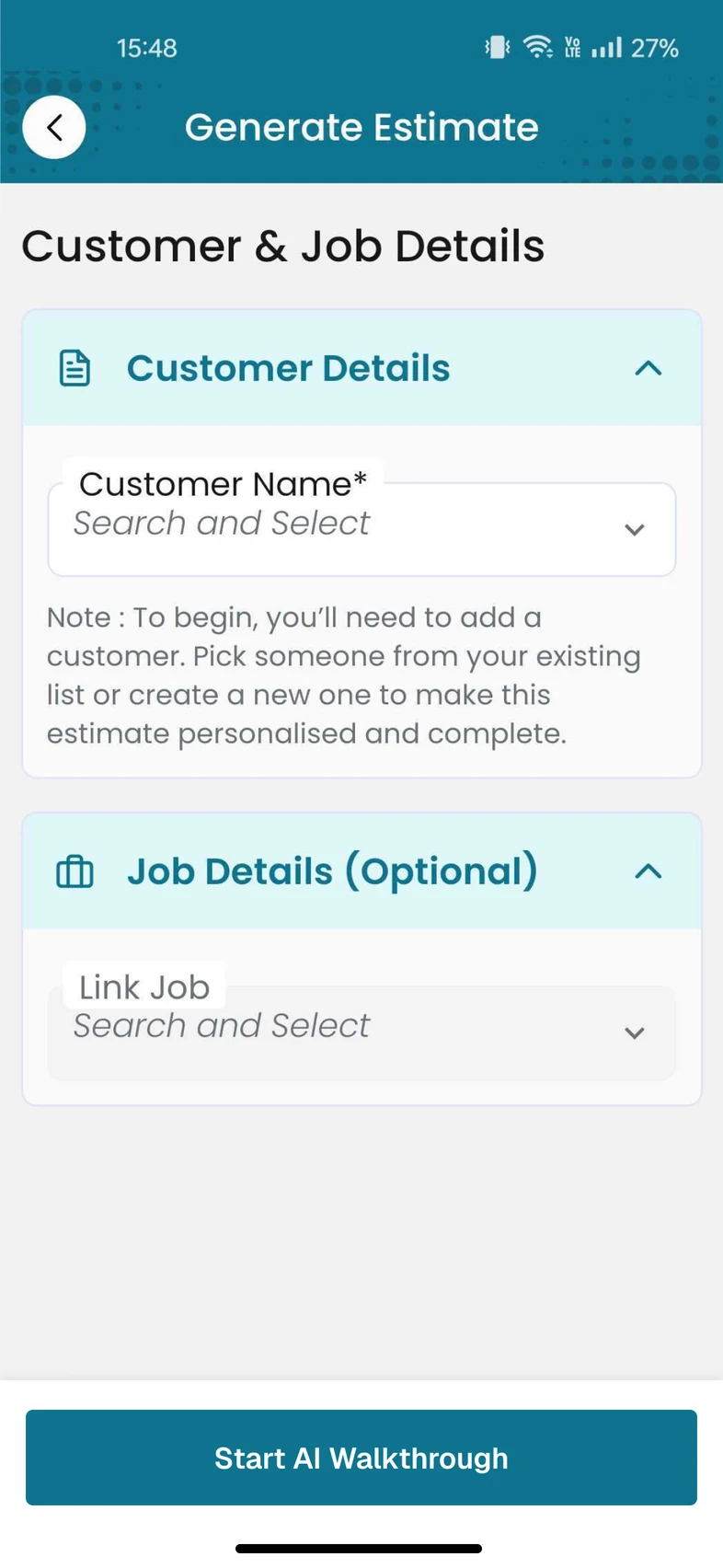
Technicians already make estimates in Swivl, so the walkthrough is the second way to make one. Pick it, choose the customer, and tap Start AI Walkthrough. The camera then opens in AI Walkthrough mode.
02 · How do you know it's listening?
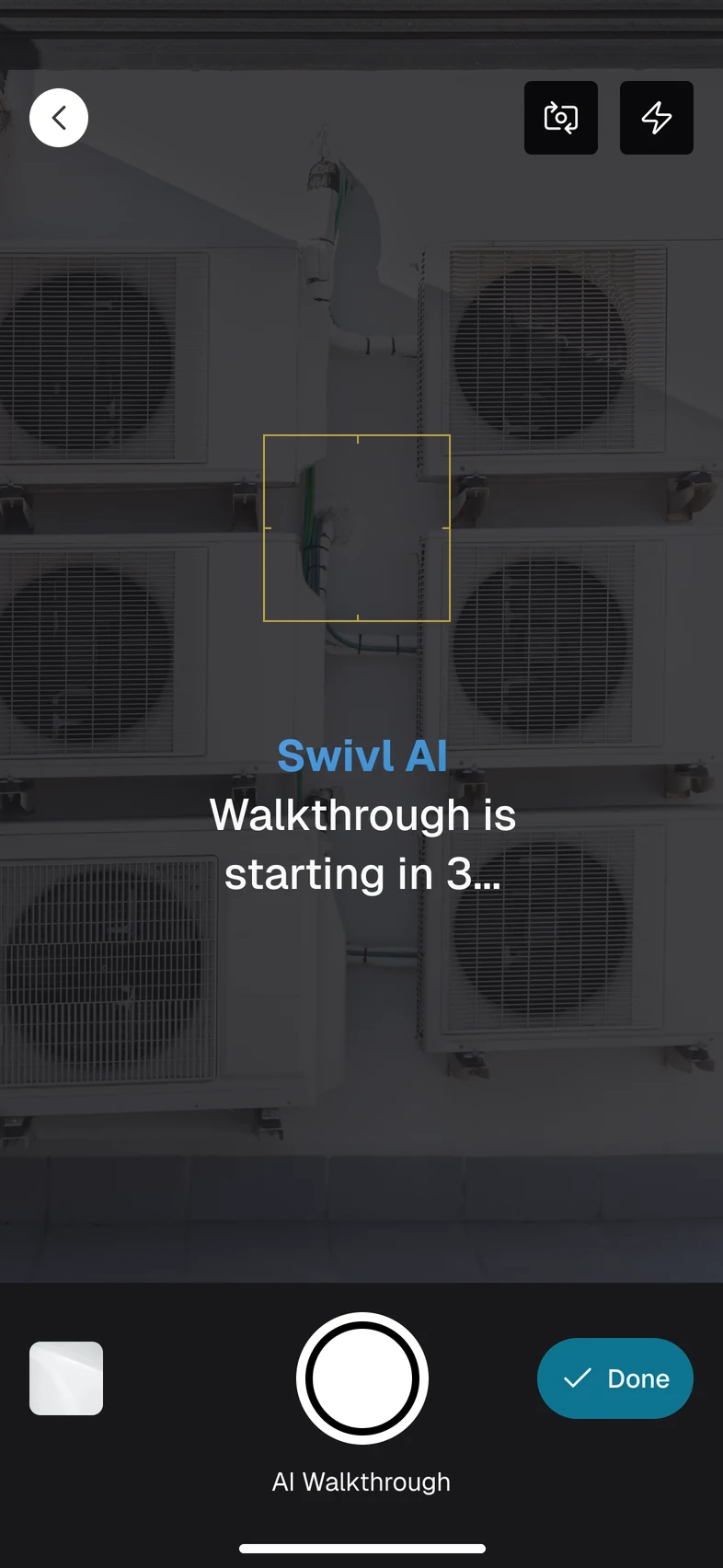
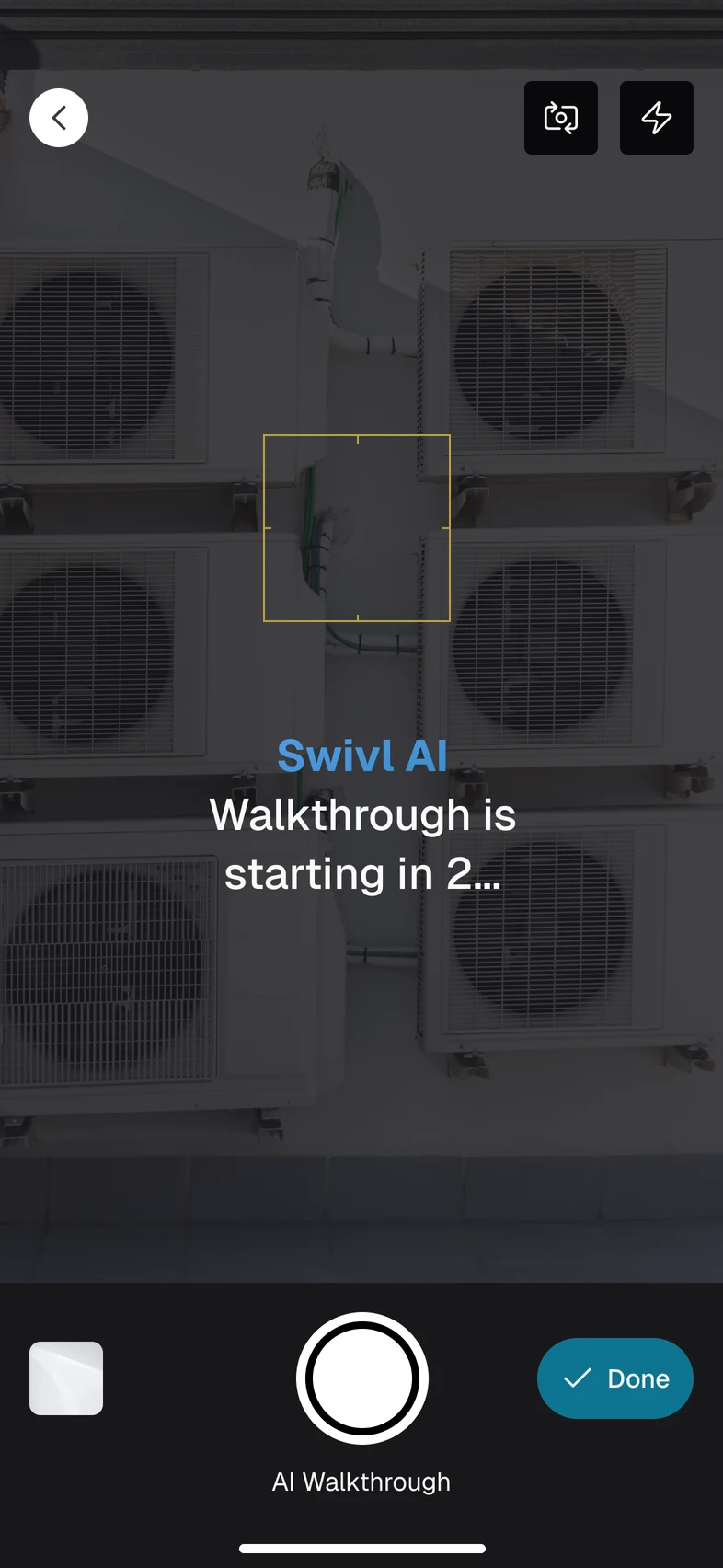
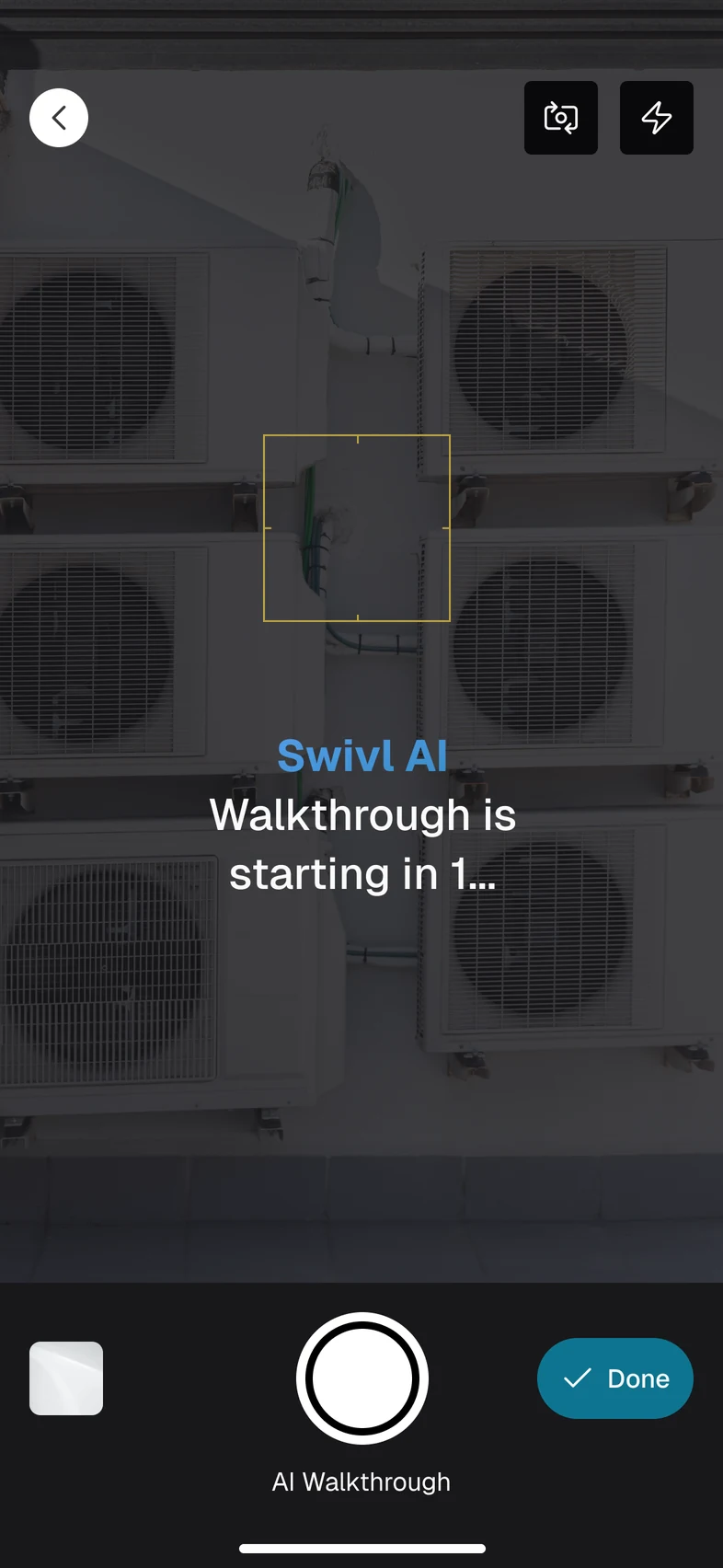
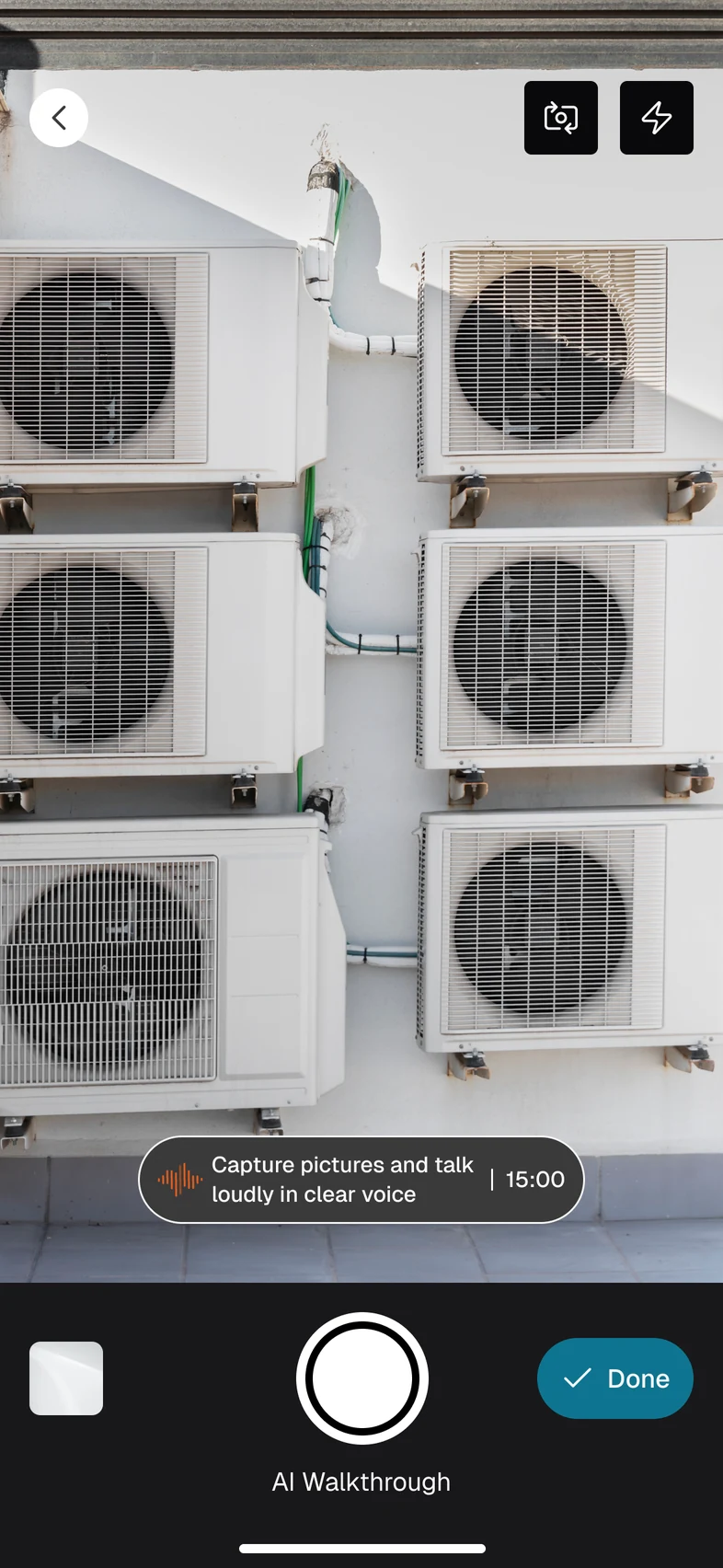
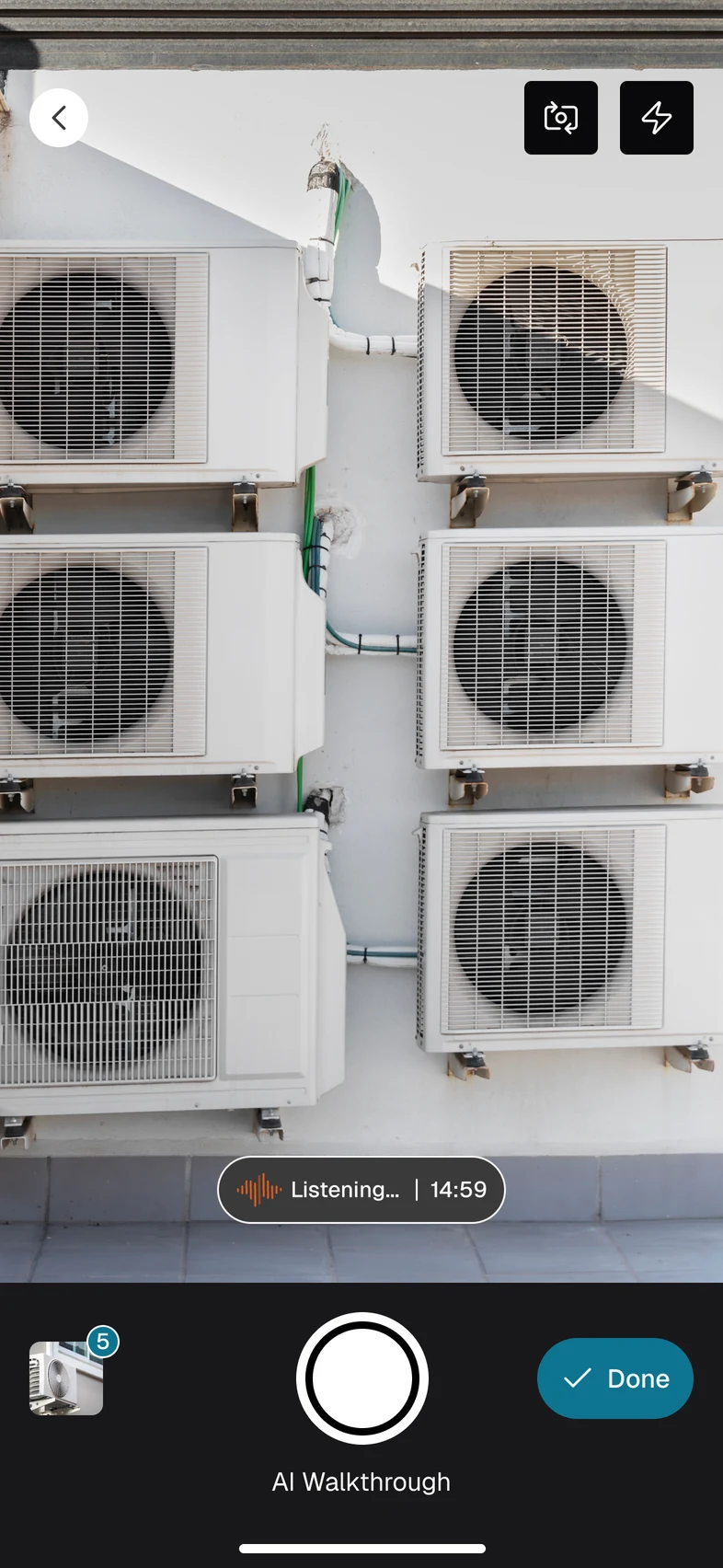
A 3-2-1 countdown gives a moment to get ready, and the first hint says to talk loudly and clearly. While it records, a badge shows a moving waveform and the time left out of 15 minutes, and the photo stack counts every photo.
03 · Who has the last word?
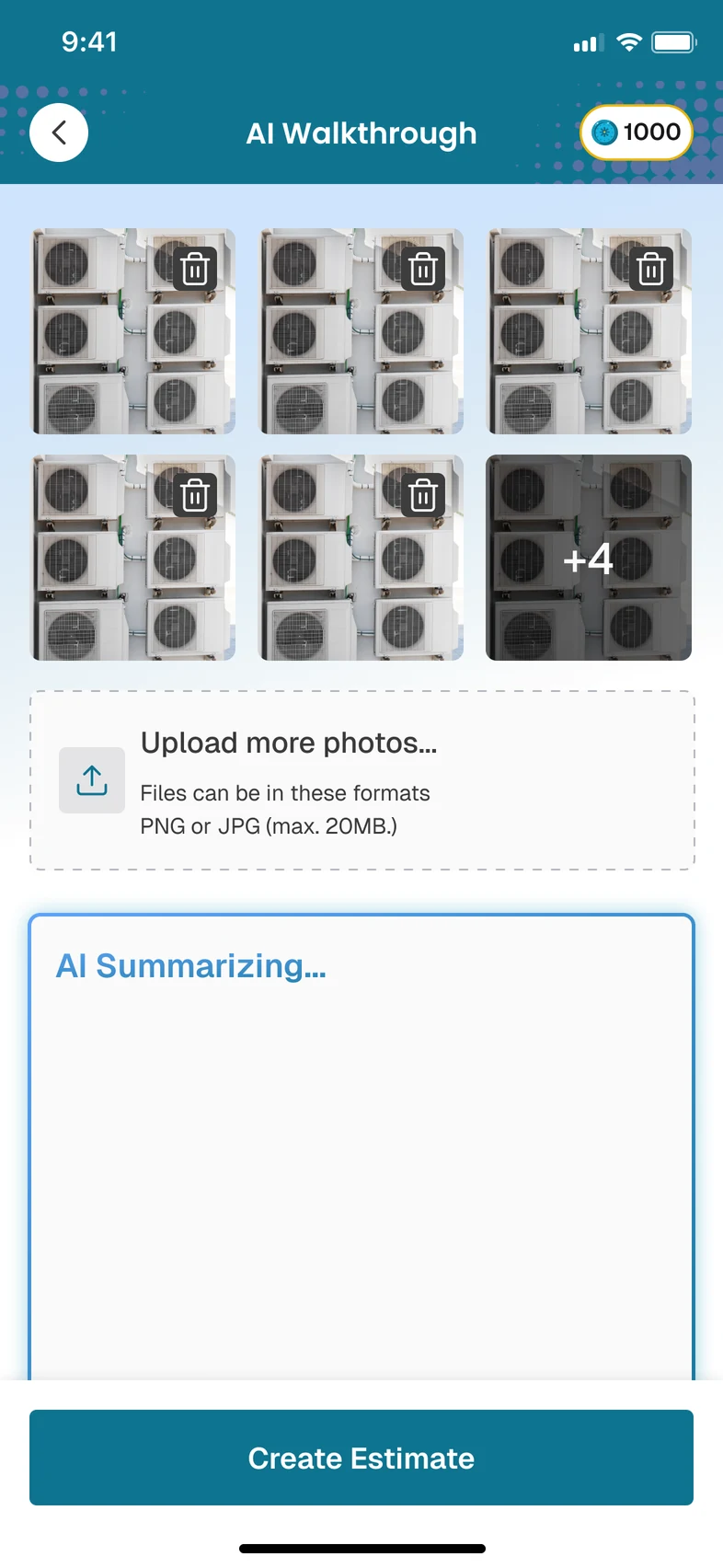
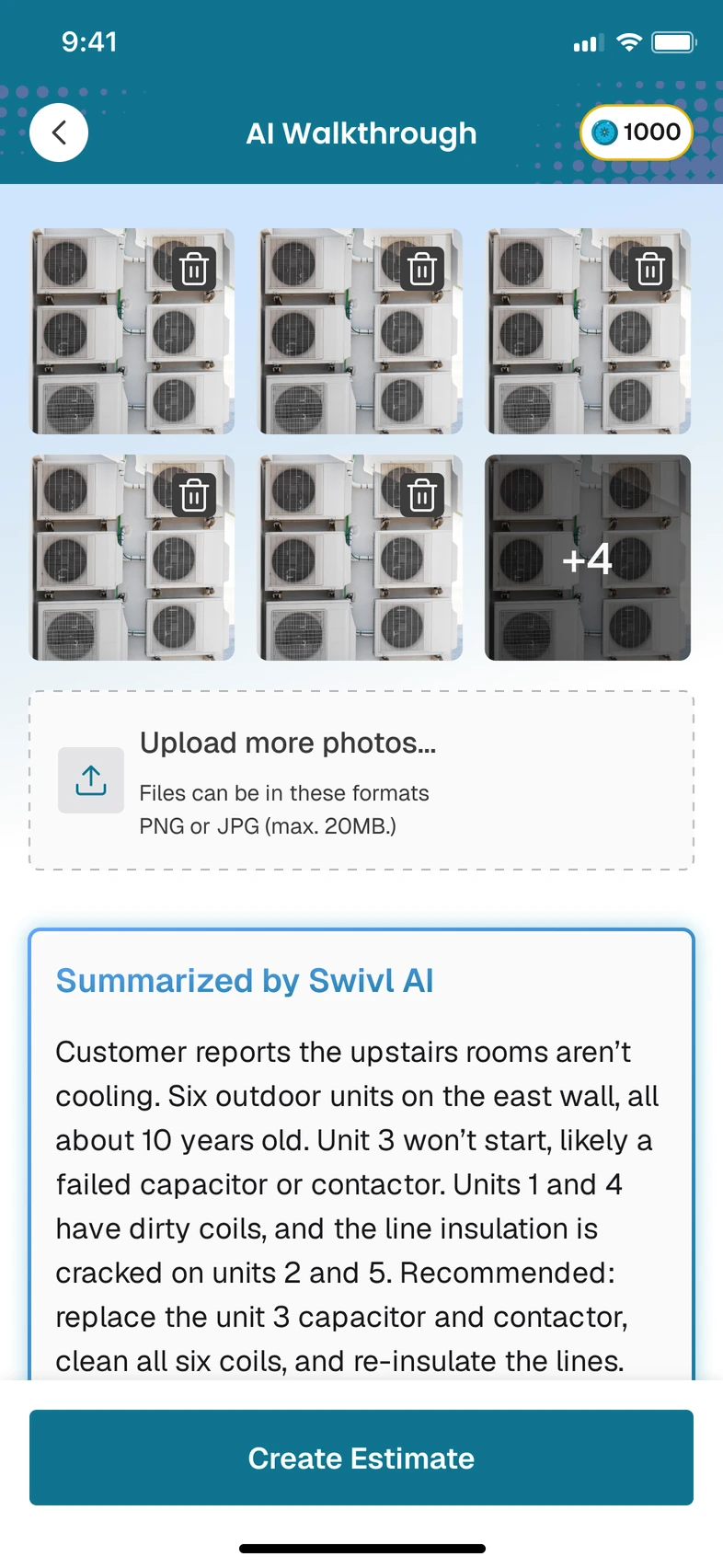
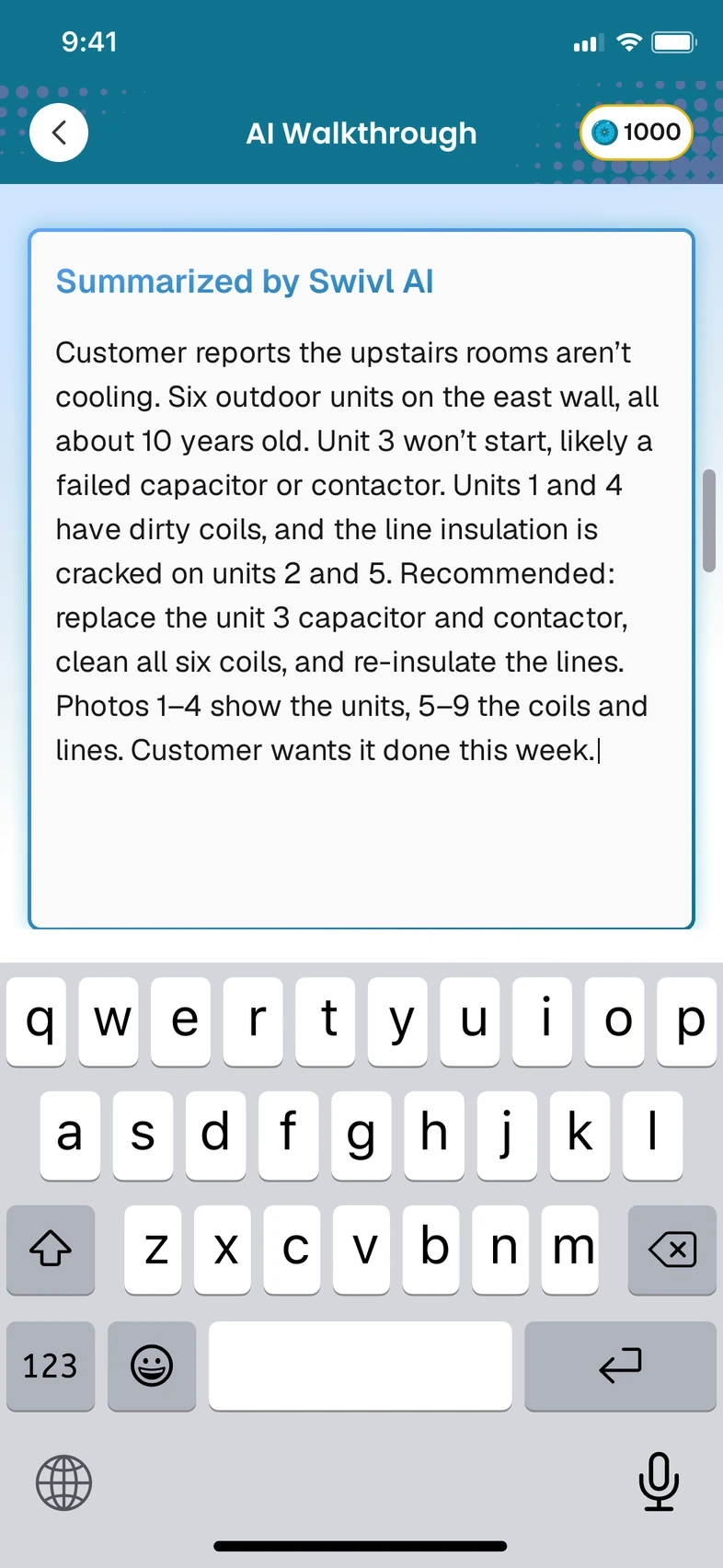
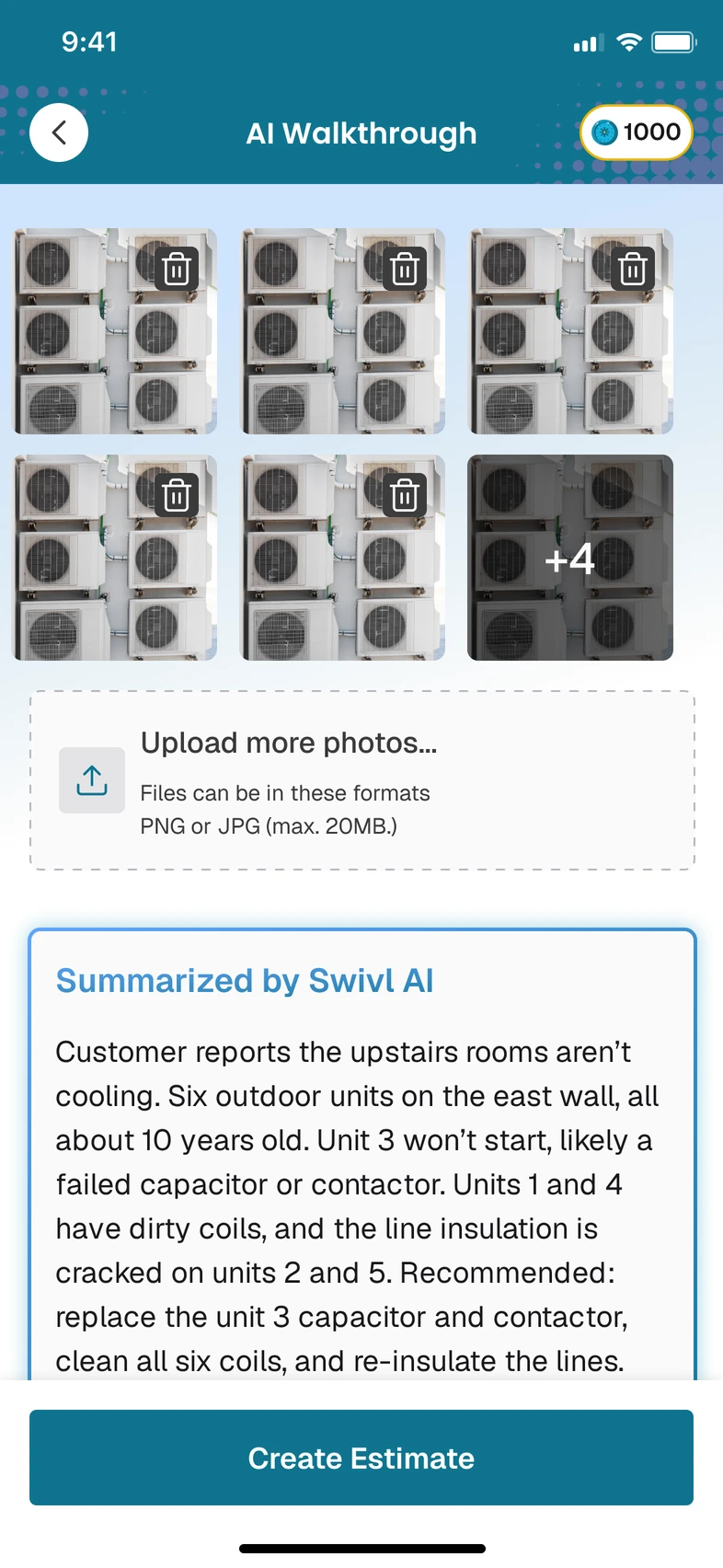
The summary arrives as a draft next to the photos. The technician can edit it, delete a photo or add more, and nothing becomes the estimate until they tap Create Estimate. The customer will read it, so a person checks it first.
The summary is a draft. Create Estimate is the technician's call.
The final design
Five steps from the estimates list to a draft, shown in the final screens.
Every screen, in order
This is a working prototype too · 18 screens · tap through them like the real appEvery screen, in order
18 screens · tap one to see it full sizeWhen things go wrong
The first time, the phone asks for the camera, then the microphone, before anything records.
Tap back while recording and it asks first, because the recording isn't saved yet.
It asks before it deletes, because a delete can't be undone.
The first time, the phone asks for the camera, then the microphone, before anything records.
Tap back while recording and it asks first, because the recording isn't saved yet.
It asks before it deletes, because a delete can't be undone.
Goals
We wrote four goals into the PRD before building anything, so the team knew what working would look like. Here's where estimates started, and what we set out to move.
Estimates sent with a description
Goal
70%
of field technicians using it within three months
Result
64%
Just short. Most started with estimates, not tasks.
Goal
50% fewer
notes typed by hand per job
Result
58% fewer
On jobs with a walkthrough.
Goal
+30%
customer satisfaction with how clear the job is
Result
+22%
From the post-job survey.
Goal
20% fewer
support calls about job reports
Result
31% fewer
Against the three months before launch.
“I talk through the job on my way out, and the estimate is ready before I reach the truck.”
Technician at a Swivl customer, HVAC
Success
The goals went into the PRD before we built anything, so the team knew what working would look like.
Goal
70%
of field technicians using it within three months
Result ⟨to add⟩
Goal
50% fewer
notes typed by hand per job
Result ⟨to add⟩
Goal
+30%
customer satisfaction with how clear the job is
Result ⟨to add⟩
Goal
20% fewer
support calls about job reports
Result ⟨to add⟩
Dashed: a number still to addYellow: a detail to confirm
Looking back
Technicians can fix the summary before anyone else sees it. A draft does more for trust than any wording could.
Putting the walkthrough next to Create Manually made it a choice inside a habit, not a new place to find.
A timer and a photo count on screen mean the 15-minute and 10-photo limits never come as a surprise.
How much technicians change the summary shows whether the AI is really helping. It's the first number I'd watch.
15 minutes and 10 photos may be too little for a large job. Real walkthroughs will show where the limits should sit.
Some sites have no signal, and not every crew speaks the same language. Both were out of scope for version 1.
Sources